Windows 11 Energy Saver Boosts FPS: How Windows 11 Energy Saver Boosts PC FPS and how to turn it on?!
How Windows 11 Energy Saver Boosts Desktop Gaming Performance
When trying to squeeze every last frame out of our PC configurations in demanding games, we usually focus on lowering visual settings, overclocking components, or cleaning out old drivers. However, the secret to a much more stable framerate and eliminating annoying micro-stutters often lies in how the operating system handles hidden background activity. In July 2026, one of the best hidden optimization methods comes from a feature that seems meant entirely for portables. The Windows 11 Energy Saver mode, included in recent system updates, delivers unexpected benefits for standard desktop setups.
While the function was initially developed to extend battery life on laptops, Microsoft completely revamped its underlying system architecture. When you activate this option on a desktop PC that is permanently plugged into a wall outlet, the operating system applies aggressive resource restrictions to background apps, system telemetry, and inactive browser tabs, channeling all raw hardware power directly into your active game or application.
How Energy Saver Eliminates Gaming Micro-Stutters
The primary cause of sudden framerate drops during intense gaming sessions is rarely a weak graphics card or a lack of RAM. Instead, sudden spikes in CPU utilization by background applications are usually to blame. While you are gaming, Windows can silently launch automated security scans, driver update checks, or cloud service synchronizations, instantly choking your CPU cores.
By activating this mode, Windows 11 changes its thread scheduling priorities. Background applications are automatically forced into “Efficiency Mode,” consuming the bare minimum of processor cycles. This means your CPU can dedicate its entire performance capacity to handling game engine calculations, directly resulting in significantly more consistent frametimes and smooth, stutter-free gameplay.
Step-by-Step Desktop Activation Guide
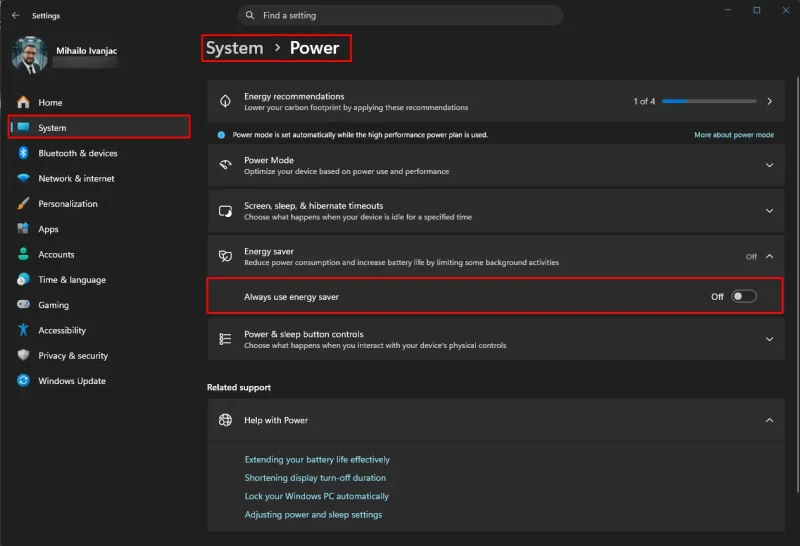
Because this feature is turned off by default on desktop computers and hidden inside deeper system configuration menus, you need to enable it manually by following these steps:
- Open the system settings panel by pressing the Windows Key + I shortcut.
- Navigate to the “System“ tab, then click on the “Power” option.
- Locate the section labeled “Energy Saver” and click to expand it.
- Toggle the switch next to the “Always On” setting to activate it permanently.
Once activated, a small leaf icon will appear in your system tray (next to the clock), confirming that the operating system has successfully minimized background task frequencies. It is crucial to note that on desktop PCs, this mode does not reduce CPU or GPU clock speeds when running a full-screen game. The performance restrictions apply strictly to passive applications running behind the scenes.
System Performance Comparison
To help you understand the impact, the table below maps out how the system behaves with and without this hidden desktop optimization enabled:
| System State | Background Process Behavior | Impact on FPS Stability | Frametime Consistency |
|---|---|---|---|
| Standard Mode (Default) | Telemetry and update routines run freely | Potential sudden drops due to background CPU load | Prone to periodic spikes and sudden micro-stutters |
| Energy Saver Enabled | Aggressively throttled background tasks | Maximum and highly stable in-game framerates | Extremely flat line with no visible micro-stuttering |
Frequently Asked Questions (FAQ)
Will this option lower my graphics card performance in games?
No. On desktop computers, Windows 11 Energy Saver does not limit the power consumption or performance of hardware used by the active foreground application. Your GPU and CPU run at maximum capacity inside the game, while restrictions apply solely to passive background tasks.
Which processors benefit the most from this trick?
Users running mid-range 6-core or 8-core processors from older generations will notice the biggest jump in frame pacing stability. On these CPUs, background spikes easily choke the execution threads needed by modern games, so throttling them provides instant relief.
Does this feature automatically turn off after a system reboot?
If you select the ‘Always On’ option in the settings menu, the mode remains permanently active even after restarting your computer, automatically protecting your configuration from background clutter every time you boot up.