


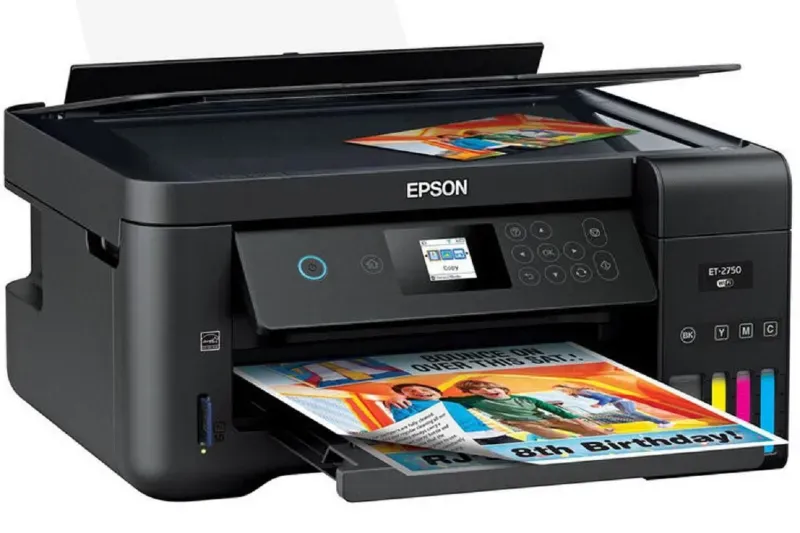
How to Install a Printer on Windows 10 & 11 (2026 Guide)
Installing a printer is usually straightforward today, but it can still cause issues—especially when Windows doesn’t recognize the device automatically or when setting up wireless printers.
This guide walks you through all common installation methods, whether you’re using USB, Wi-Fi, or a network printer, along with solutions to the most common problems that can happen on your PCs.
Types of Printer Connections
Before starting, it’s important to understand how your printer is connected to your computer:
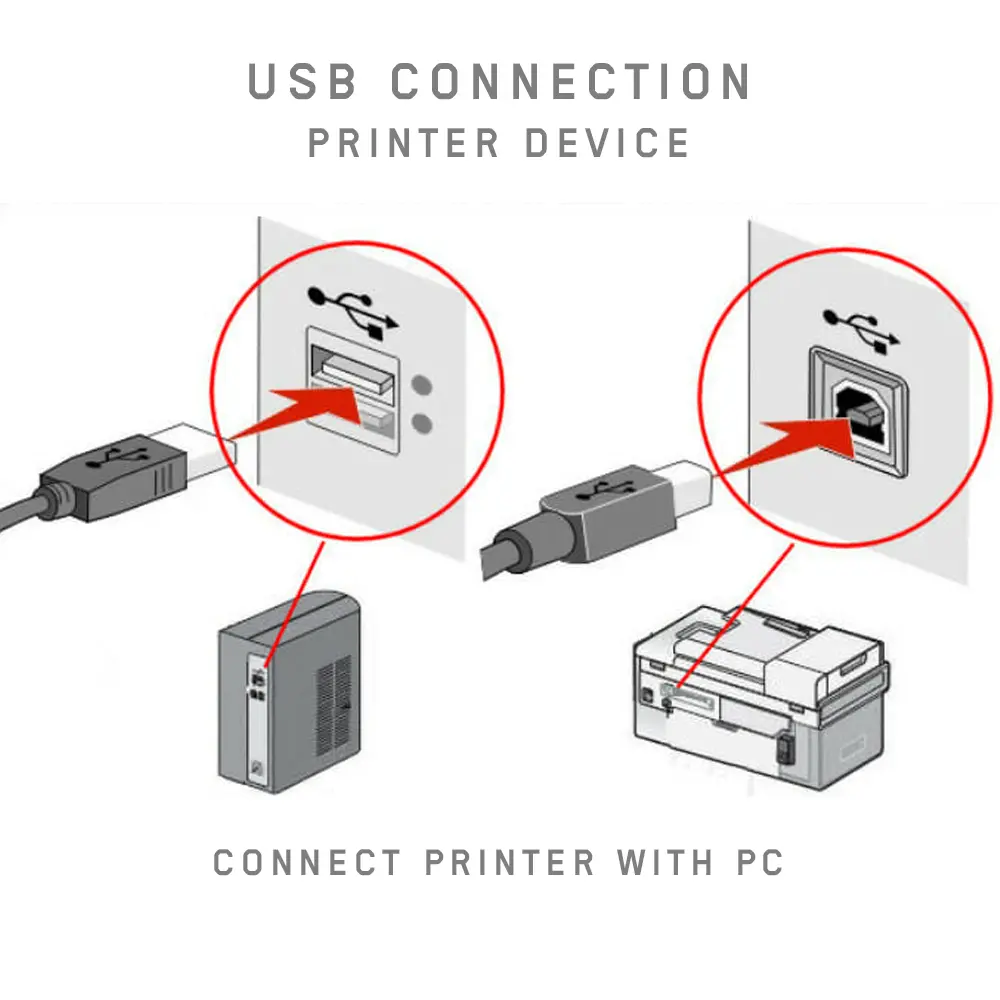
USB Printer
- Connected directly via cable that came with your printer (check behind the printer if you see a cable other than power cable)
- Easiest setup almost like a plug and play and couple of clicks
Wi-Fi (Wireless) Printer
- Connected to the same network as your PC
- No cables, but requires initial setup
Network Printer
- Common in offices
- Shared across multiple devices, usually there is a network switch or another router involved
Automatic Installation (Easiest Method)
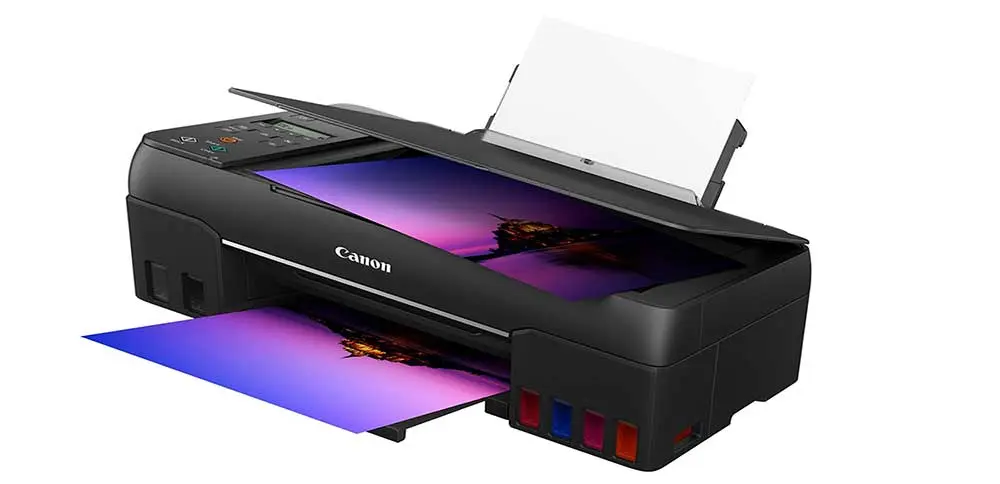
In many cases, Windows will detect the printer automatically but you still have to install software or click couple of times in windows settings of your PC.
Don’t miss this
Steps:
- Connect the printer (USB or Wi-Fi)
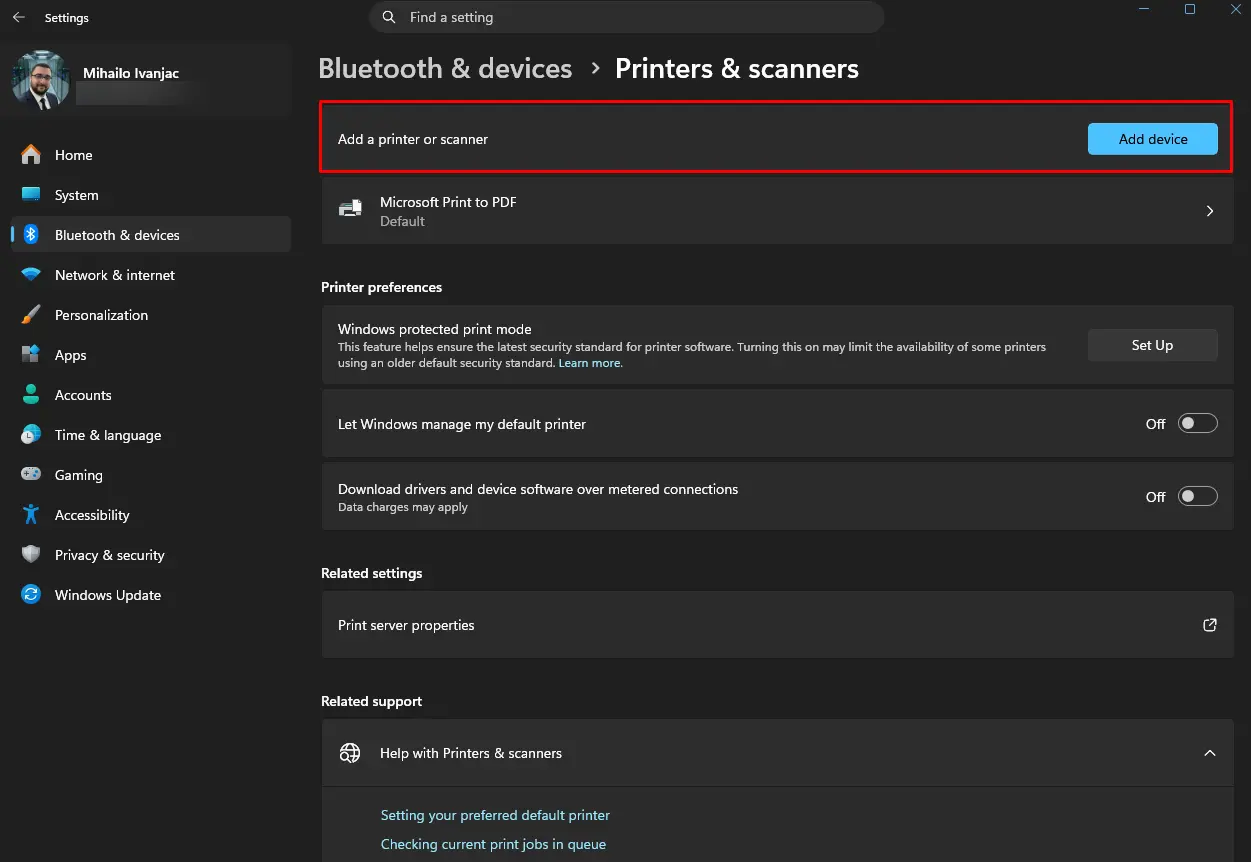
- Open Settings
- Go to Bluetooth & Devices → Printers & scanners
- Click Add a printer or scanner (Add Device)
If your printer appears, just select it and complete the setup.
Manual Installation
If Windows cannot find your printer:
- Open Printers & scanners
- Click Add manually
- Choose one of the options:
- Add via IP address
- Local port
- Manual driver selection
This is more common with older or network printers.
Installing a Wireless Printer
For Wi-Fi printers:
- Connect the printer to your Wi-Fi network
- Make sure your PC is on the same network
- Add the printer through Windows
If it’s not detected:
- Use the manufacturer’s software that come on a CD/USB stick or download from their website
- Or add it via IP address
Driver Installation
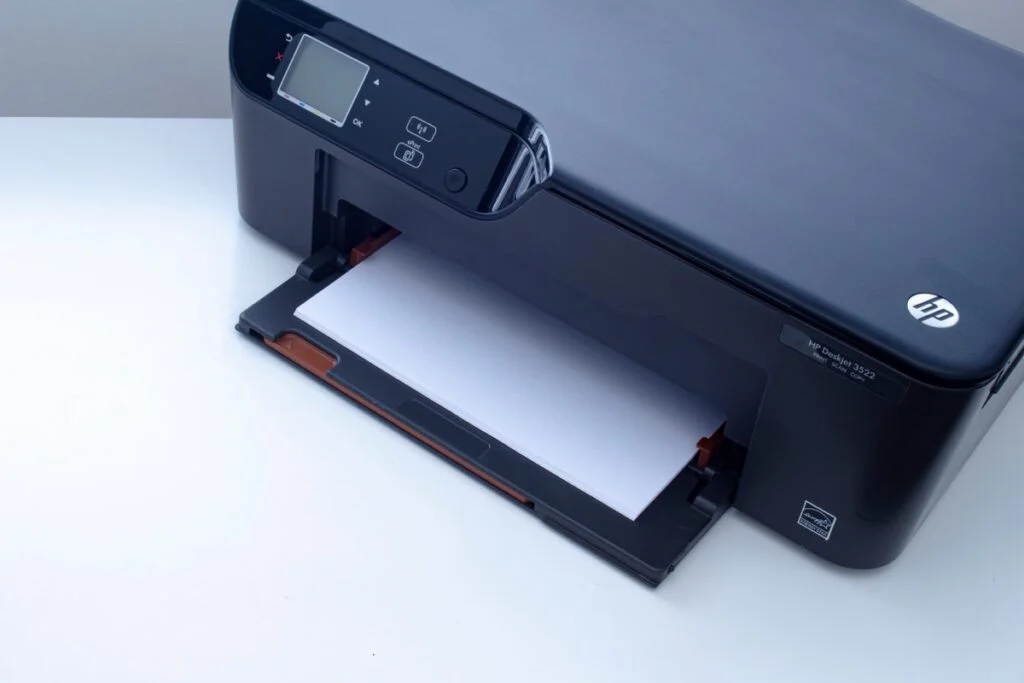
Windows often installs drivers automatically, but sometimes manual installation is needed:
- Download drivers from the manufacturer’s website, usually you have a paper with instructions or it’s on the side od the packaging
- Install before or after adding the printer
Common Problems and Fixes
Printer Not Detected
- Check cables or Wi-Fi connection maybe you are not connected
- Restart both printer and PC many times this helps
Printer Shows as “Offline”
- Make sure your printer is powered on, there is usually a green or blue light somewhere on it or display is showing a message
- Remove and re-add the printer eventually reinstall driver and all of manufactures software and start again
Driver Issues
- Install the latest version from internet or disc if its older version of a printer it should come with it
- Avoid generic drivers if official ones are available that is best for any device not just printers
Windows 10 vs Windows 11
The process is nearly identical.
Windows 11 has a slightly updated interface, but the steps remain the same.
Conclusion
Installing a printer on Windows 10 or 11 is usually simple, but wireless and network setups can sometimes be tricky, especially if you have a network device like additional router or a network switch.
Focus on proper connectivity, correct drivers, and basic troubleshooting steps—most issues can be resolved quickly without advanced tools.


