
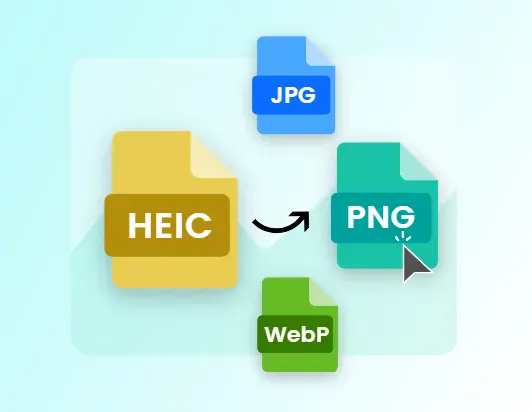
How to Open and Convert HEIC Files to JPEG on Windows 10 and Windows 11
Do Something Useful with All Your iPhone HEIC Photos
Problems often start the moment you want to use those beautiful iPhone photos on a Windows PC. If you try to open a .HEIC file and your computer tells you it can’t recognize the format, you’re not completely out of luck. Not only can you open HEIC files on Windows 10 and Windows 11, but you can also easily convert them into the much more compatible JPEG format.
HEIC (High Efficiency Image Container) is a modern image format that delivers the same or better quality than JPEG while taking up significantly less storage space. For smartphones with limited memory, this efficiency is a real blessing. Interestingly, HEIC isn’t purely an Apple invention — it’s based on the HEIF (High Efficiency Image File) format developed by the same team behind the MPEG video standards. That means it’s gradually becoming more widespread across devices and platforms.
On your iPhone, saving photos in HEIC usually makes no visible difference in quality, but it saves a lot of space. However, when those files land on a Windows computer, compatibility issues can quickly turn into frustration.
What Exactly Is HEIC?
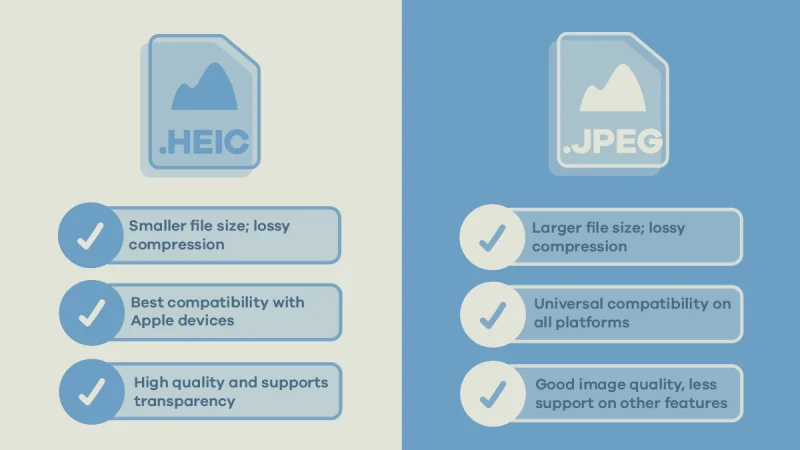
HEIC is Apple’s name for a container that holds images in the HEIF format, which relies on the HEVC (High Efficiency Video Compression) codec — the same technology used for modern video. In simple terms, it lets you store high-quality photos in much smaller file sizes thanks to smarter compression algorithms. Apple made HEIC the default photo format starting with iOS 11, so chances are you’ve been using it without even realizing.
You can still switch your iPhone back to “Most Compatible” mode in Settings > Camera > Formats if you prefer JPEG from the start, but for existing photos, conversion on your PC is the way to go.
How to Open HEIC Files on Windows 10 and Windows 11
The first time you double-click a HEIC photo on Windows, you might see an error message saying the format isn’t supported. Don’t worry — there are straightforward solutions that work well in 2026.
The most common approach is to add official support through Microsoft’s own extensions. Go to the Microsoft Store and install two key packages:
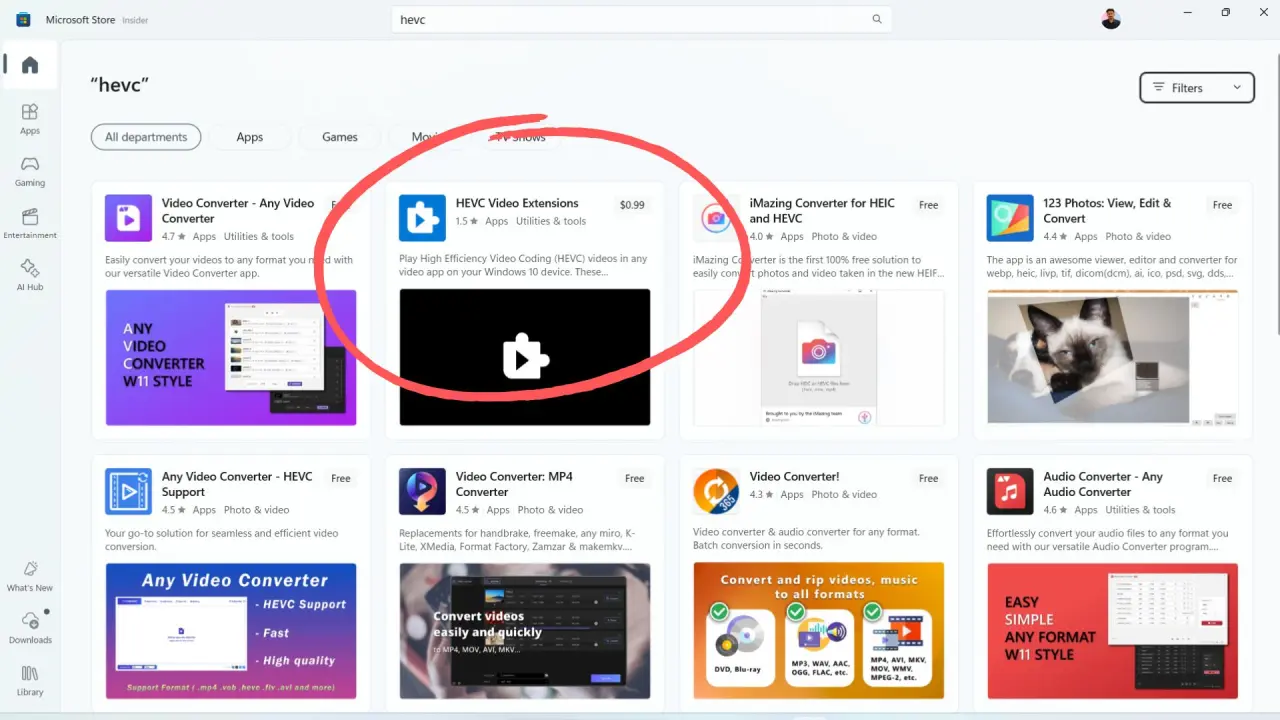
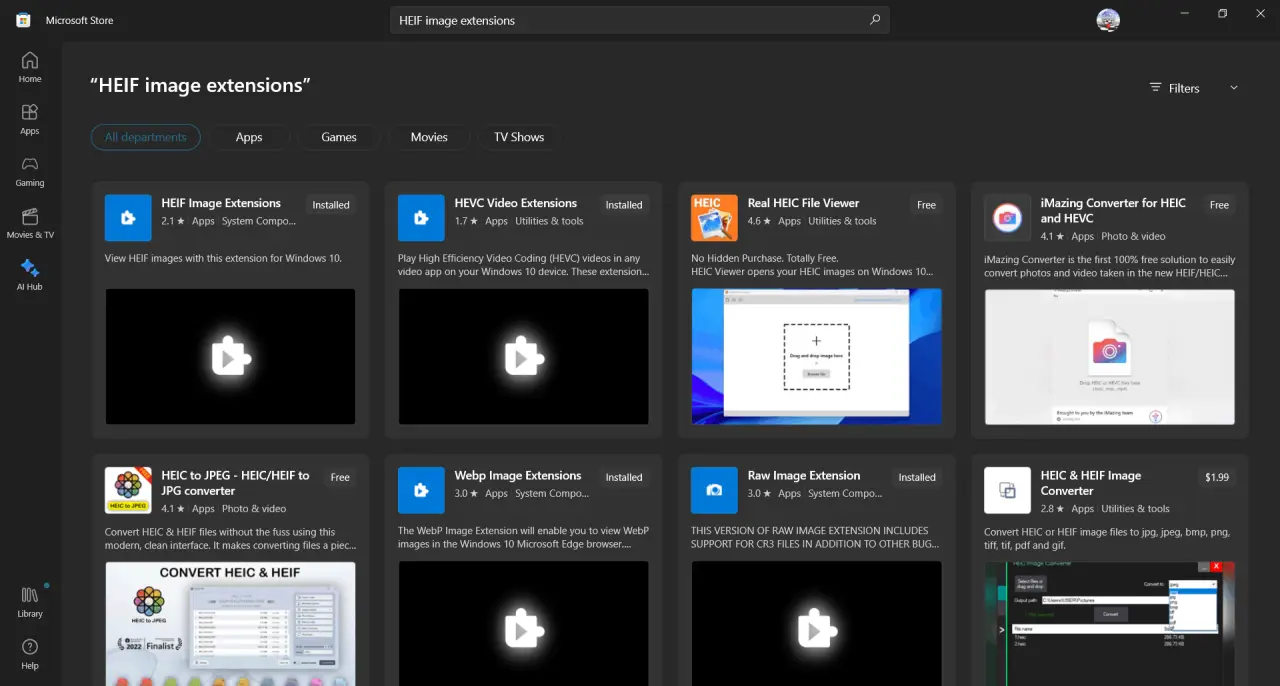
- HEIF Image Extensions (usually free)
- HEVC Video Extensions (often costs about $0.99, though some versions or promotions make it free)
Once both are installed, your HEIC files should open automatically in the built-in Photos app, and you’ll even see thumbnails in File Explorer. Restart your PC after installation for the best results. Note that on newer Windows 11 installations, support has improved, but you may still need the HEVC extension due to licensing reasons.
If you prefer a simpler, all-in-one solution without paying for extensions, many users in 2026 recommend CopyTrans HEIC (free for personal use). This lightweight plugin integrates directly into Windows, adds thumbnail previews in Explorer, and lets you open HEIC files in the classic Windows Photo Viewer or the modern Photos app.
Converting HEIC to JPEG – The Easy Ways
Even after you can open HEIC files, compatibility problems often pop up when sharing photos with friends, uploading to certain websites, or editing in older programs. Converting to JPEG is usually the smartest move for everyday use.
Method 1: Quick Conversion Using the Built-in Photos App
- Open the HEIC photo in the Photos app (after installing the extensions).
- Click the three dots (…) menu in the top right.
- Select Save as (or Edit & Create > Edit on some versions).
- In the save dialog, choose JPEG from the format dropdown.
- Pick your folder and click Save.
This creates a high-quality JPEG copy while keeping the original HEIC intact. It works fine for a few photos, but it gets tedious if you have hundreds.
Method 2: Right-Click Conversion with CopyTrans HEIC (Recommended for Convenience)
After installing CopyTrans HEIC, simply right-click on any HEIC file (or select multiple) in File Explorer. Choose Convert to JPEG with CopyTrans. The tool creates a JPEG version in the same folder, often preserving EXIF data like date, location, and camera settings. It supports batch processing up to 100 files at once and feels seamless.
Method 3: Fast Batch Conversion for Large Collections
If you have dozens or hundreds of HEIC photos (common after importing from an iPhone), the Photos app method isn’t efficient. Here are the best options in 2026:
- iMazing HEIC Converter (still free and popular) — Drag and drop your files, choose JPEG or PNG, adjust quality, and convert in one go. It preserves metadata and is very lightweight.
- CopyTrans HEIC — As mentioned, great for right-click batch conversion.
- IrfanView (free classic image viewer) — Install the HEIC plugin, then use its powerful Batch Conversion tool to process entire folders quickly while keeping quality and EXIF data.
- XnView MP or XnConvert (free) — Excellent for bulk conversions with lots of options for resizing, renaming, or adjusting images.
For advanced users, ImageMagick (free, open-source) offers command-line power for massive batches while perfectly preserving metadata.
Prevent Future Headaches
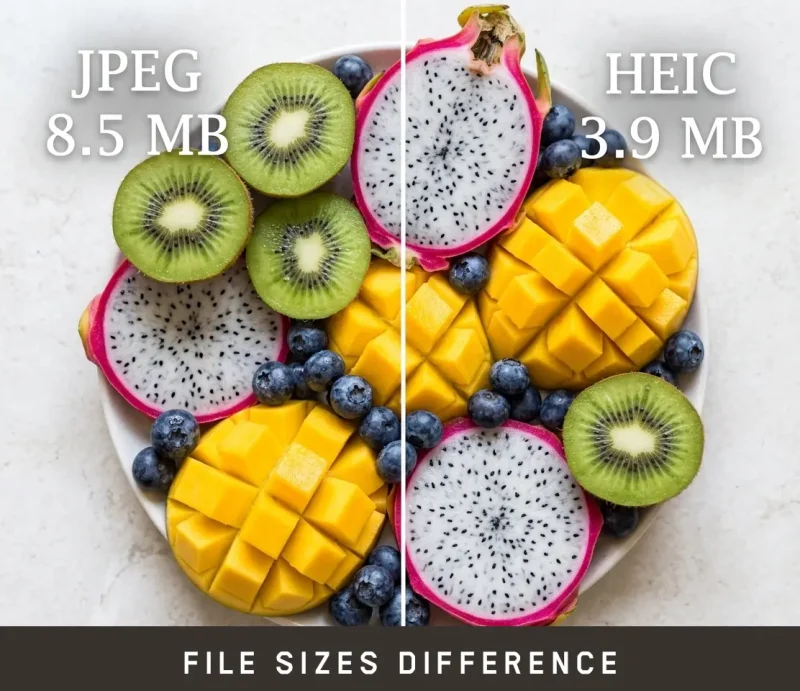
The easiest long-term fix is to change your iPhone settings so new photos are saved as JPEG instead of HEIC. Go to Settings > Camera > Formats and select Most Compatible. This makes transfers to Windows much smoother, though files will be slightly larger.
Summary
Dealing with HEIC photos on a Windows PC used to be annoying back in 2021, but things have improved a lot by 2026. With Microsoft’s extensions, handy plugins like CopyTrans HEIC, or simple free converters, you can open and convert your iPhone images quickly and without losing quality. Whether you need to handle one special photo or an entire vacation library, there’s now a method that fits your workflow perfectly.
Once your photos are in JPEG format, they become truly universal — easy to share, edit, print, or upload anywhere. No more frustrating “format not supported” messages standing between you and your memories.
If you run into any specific issues or have a large number of photos to convert, feel free to drop a comment below with details about your Windows version, and I’ll help you find the best solution for your setup.