


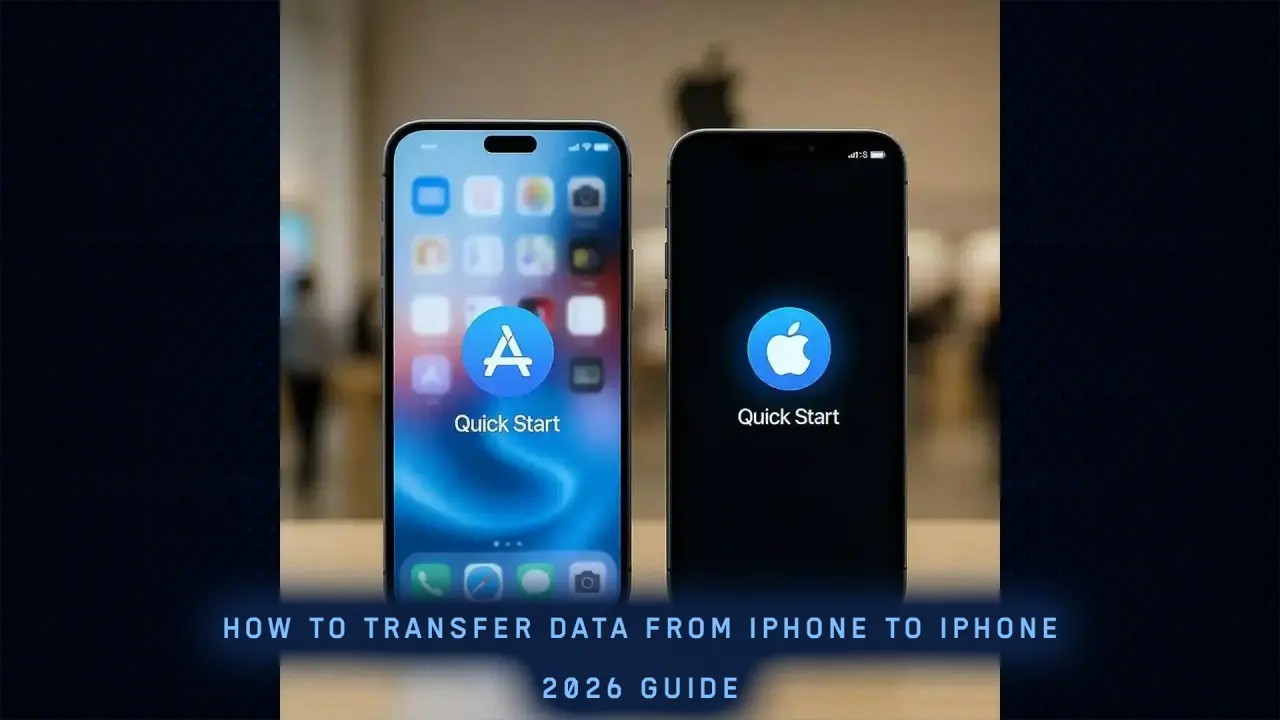
How to Transfer Data from iPhone to iPhone: The Complete 2026 Guide
Setting up a new iPhone is an exciting experience, but the thought of losing your photos, messages, and app data can be stressful. Whether you’ve just unboxed the latest iPhone 17 Pro or are moving to a refurbished model, Apple has made the migration process smoother than ever.
In this guide, we will walk you through the three best methods to transfer your data, ensuring nothing is left behind.
Before You Start: The Pre-Migration Checklist
To avoid errors during the transfer, follow these three essential steps:
- Update your iOS: Ensure both the old and new iPhones are running the latest version of iOS.
- Charge Both Devices: Data transfer can be battery-intensive. Keep both phones plugged into power if possible.
- Check Your Wi-Fi: A stable connection is required for wireless transfers.
Method 1: Quick Start (The Easiest Way)
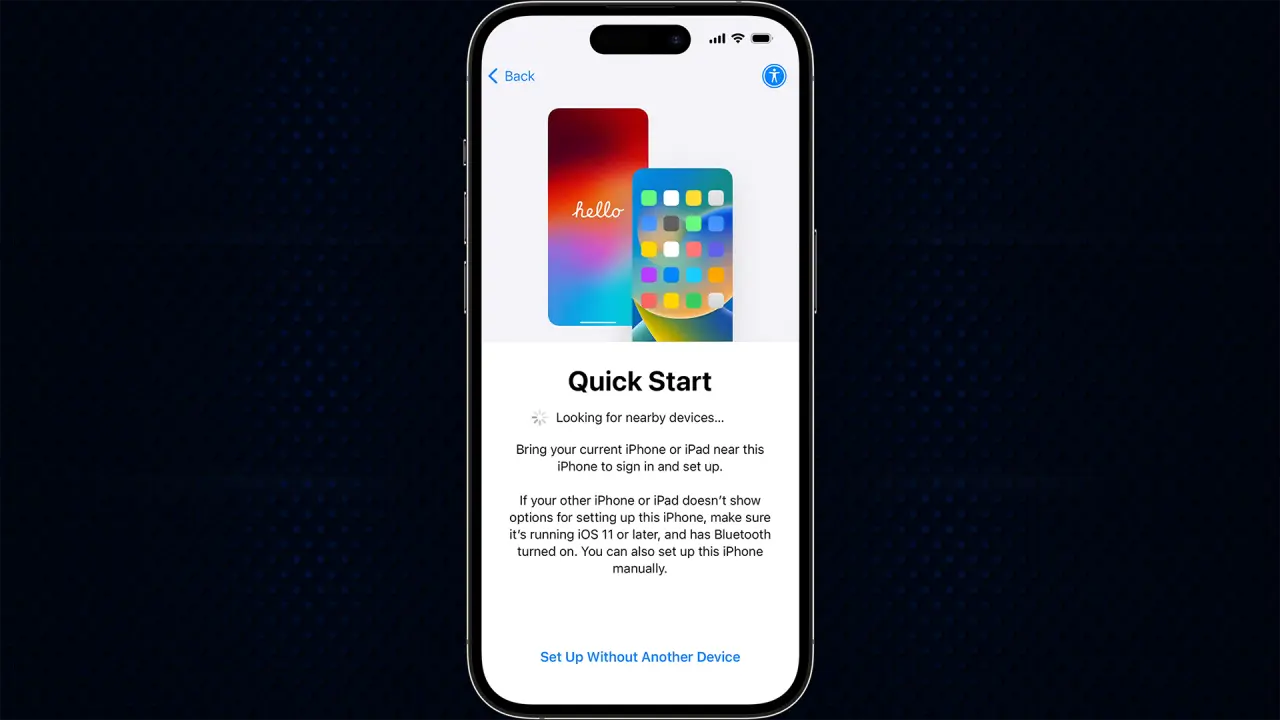
Quick Start is Apple’s “Device-to-Device” migration tool. It uses a direct Wi-Fi/Bluetooth connection to clone your old phone onto the new one.
Step-by-Step:
- Turn on your new iPhone and place it next to your old one.
- The “Set Up New iPhone” prompt will appear on your old device. Tap Continue.
- An animation will appear on the new iPhone. Scan it using the camera on your old device.
- Enter your old iPhone’s passcode on the new device.
- Select “Transfer from iPhone” and keep the devices near each other until the progress bar completes.
Why use this? It’s wireless, requires no computer, and transfers almost everything including your system settings.
Method 2: Using iCloud Backup (The Wireless Remote Way)
If you don’t have your old phone physically present or if you prefer using the cloud, iCloud is your best bet.
Step-by-Step:
- On your old iPhone, go to Settings > [Your Name] > iCloud > iCloud Backup and tap Back Up Now.
- Turn on your new iPhone and follow the setup screens until you reach “Apps & Data.”
- Tap Restore from iCloud Backup.
- Sign in with your Apple ID and choose the latest backup you just created.
Expert Tip: If you don’t have enough iCloud storage, Apple now offers “Temporary iCloud Storage” for 21 days specifically for moving to a new device. Check Settings > General > Transfer or Reset iPhone to activate it.
Method 3: Using a Computer (The Fastest for Large Libraries)
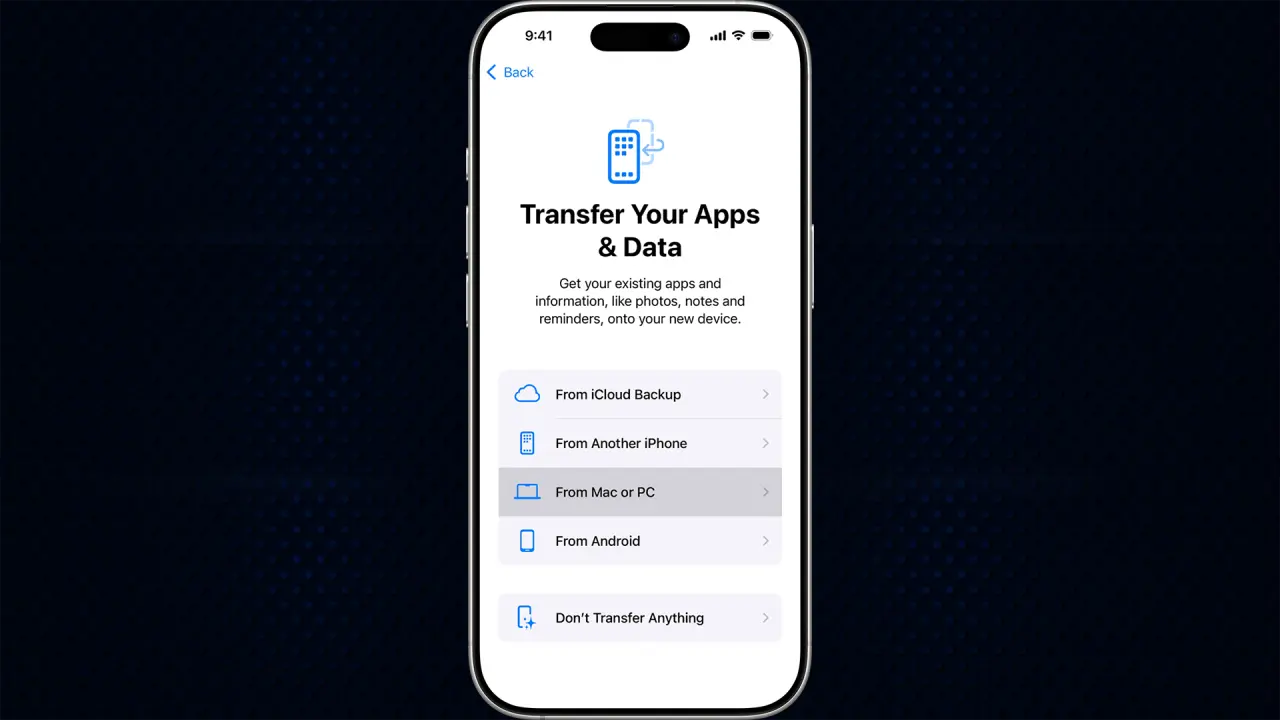
If you have 500GB+ of photos and videos, a wired transfer via a Mac (Finder) or PC (iTunes/Apple Devices app) is significantly faster than Wi-Fi.
Step-by-Step:
- Connect your old iPhone to your computer and create a Full Encrypted Backup. (Encryption is required to save your passwords and Health data).
- Disconnect the old phone and connect the new iPhone.
- On the “Apps & Data” screen of the new iPhone, select Restore from Mac or PC.
- Select your backup and wait for the sync to finish.
Common Troubleshooting: What to do if it fails?
- “Transfer Cannot Be Completed”: This usually happens if the new iPhone has less storage than the old one. Check your storage usage before starting.
- Stuck on the Apple Logo: Force restart the new device and try the “Method 3” wired approach.
- eSIM Transfer: During the Quick Start process, iOS will ask to transfer your cellular plan. Most modern carriers support this, but if it fails, you will need to contact your provider for a new QR code.
Final Steps After the Transfer
Once the transfer is finished, don’t wipe your old phone immediately! Verify the following:
- Check that your WhatsApp/Viber messages have migrated (these often require a separate in-app backup).
- Sign back into banking apps (most require re-authorization for security).
- Pair your Apple Watch with the new device.

