
Cloudflare Tunnel on Ubuntu/Debian: The Ultimate Escape from CGNAT
While traditional port forwarding has long been the standard for hosting local services, it is increasingly becoming a relic of a less complex internet era. Between the security risks of opening holes in your firewall and the growing prevalence of CGNAT (Carrier-Grade NAT), exposing your home server to the web is more challenging than ever.
The solution isn’t a complex VPN or a costly static IP. It is Cloudflare Tunnel (formerly Argo).
By establishing a secure, outbound-only connection to the Cloudflare edge, you can expose your OpenLiteSpeed or Nginx stack to the world without ever touching your router’s port settings. Here is how to implement a professional-grade setup on Ubuntu 24.04 or later.
Why Tunnels Beat Port Forwarding

In a standard setup, you open a port and pray that your firewall stops everything but legitimate traffic. Cloudflare Tunnels flip the script. Since the connection is outbound, your server acts as a client. This means:
- Zero Open Ports: Your router remains locked tight.
- IP Obfuscation: Your actual home IP is never revealed to the public; visitors only see Cloudflare’s IP.
- Automatic SSL: Cloudflare handles the certificates, so you don’t have to struggle with Let’s Encrypt renewals locally.
Step-by-Step Implementation
1. Install the Cloudflare Agent (cloudflared)
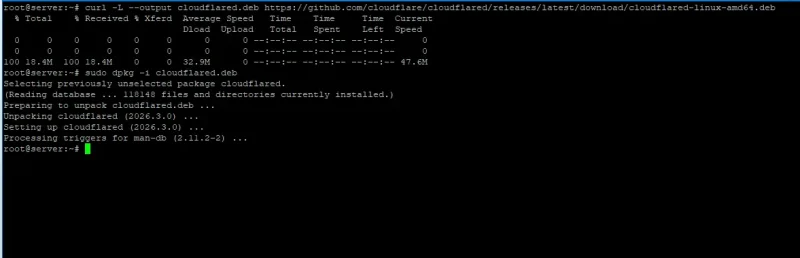
First, we need the daemon that maintains the connection. Run the following to fetch the latest binary:
Bash
curl -L --output cloudflared.deb https://github.com/cloudflare/cloudflared/releases/latest/download/cloudflared-linux-amd64.deb && sudo dpkg -i cloudflared.deb
2. Authenticate with Zero Trust
Before creating a tunnel, you must link your server to your Cloudflare account:
Don’t miss this

Bash
cloudflared tunnel login
Follow the URL provided in the terminal, log in, and select the domain you wish to use. This will download a certificate file to your ~/.cloudflared directory.
3. Create Your Tunnel
Now, generate the actual tunnel instance. Replace my-server with your preferred name:
Bash
cloudflared tunnel create my-server
Note: Copy the Tunnel ID (UUID) provided in the output. You will need it for the next step.
4. Configure the Ingress Rules (config.yml)
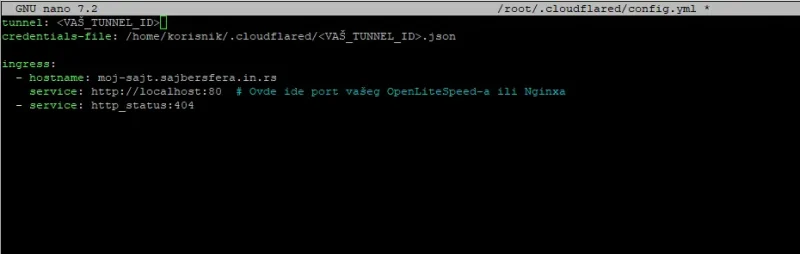
This is where most beginners fail. To run the tunnel as a background service, you must create a configuration file.
Bash
nano ~/.cloudflared/config.yml
Paste the following structure, ensuring the paths and IDs are correct:
YAML
tunnel: <YOUR_TUNNEL_UUID>
credentials-file: /home/user/.cloudflared/<YOUR_TUNNEL_UUID>.json

ingress:
  - hostname: lab.sajbersfera.in.rs
    service: http://localhost:80
  - service: http_status:404
Note: Replace hostname with your actual hostname.
Don’t miss this


5. Route the Traffic (DNS)
Point your domain’s DNS to the tunnel you just created:
Bash
cloudflared tunnel route dns my-server lab.sajbersfera.in.rs
6. Finalize as a System Service
To ensure your tunnel survives a reboot, install it as a systemd service:
Bash
sudo cloudflared service install
sudo systemctl start cloudflared
sudo systemctl status cloudflared
Troubleshooting: What if the Tunnel Fails?
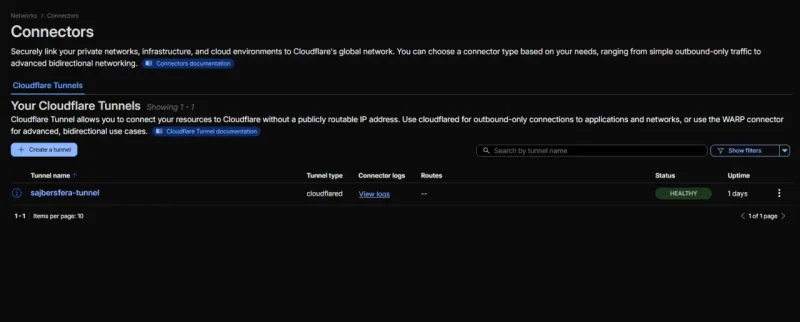
Even with the best documentation, network environments vary. Here are the most common “gotchas”:
- YAML Syntax Errors: YAML is indentation-sensitive. Ensure you are using spaces, not tabs, in your
config.yml. - 502 Bad Gateway: This usually means the tunnel is up, but your local web server (Nginx/OLS) is down or listening on a different port than the one specified in the ingress rules.
- Permission Denied: Ensure the
cloudflaredservice has read access to the.jsoncredentials file.
Conclusion
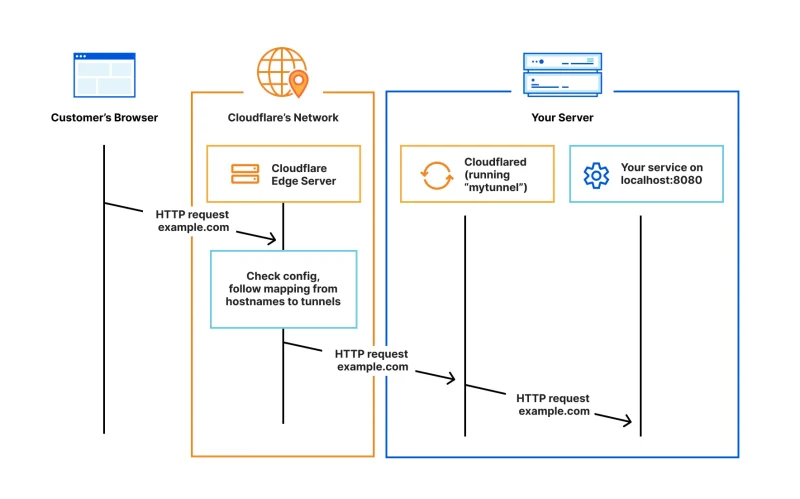
Cloudflare Tunnel is the “Gold Standard” for modern home-hosting. It bridges the gap between amateur home labs and professional infrastructure, offering a level of security that was previously reserved for enterprise data centers.
If you are serious about web performance and security, moving away from port forwarding is the single best upgrade you can make this year.